
CiteDrive 5.0 Interim Guide
Organize References, Collaborate, and Connect to Overleaf or RStudio

This guide is temporary while we rework the full documentation for CiteDrive 5.0. Some features may be incomplete, but it’s enough to get started quickly with the new interface.
Welcome to CiteDrive 5.0
CiteDrive 5.0 has a completely new interface! In this guide, you’ll learn how to:
Add and organize references
Collaborate with colleagues
Connect your projects to Overleaf, R Markdown, or Quarto
After registering, you’ll land on your dashboard. Start your first project—let’s call it “My Paper.” You can create as many projects as you like, keeping everything organized.
Adding References Quickly
Manual Entry
Click “Create BibTeX items,” type @ to select an entry type, and fill in the fields. Turn on BibLaTeX mode in Settings for extra entry types.
Database Search
Search for articles or books by title, author, DOI, or ISBN. Edit and confirm the entry before adding it.
Browser Extension
Use BibTeX Connect to import references directly from PubMed, ArXiv, or Google Scholar.
Organizing References
CiteDrive helps you keep your references structured and consistent:
Automatic checks and fixes:
Check for BibTeX errors
Handle duplicates by adding a suffix to the citation key so your library stays intact
Apply formatting options like escaping special characters
View options:
Compact: Type, title, first author, year
Expanded: All authors, keywords, journal/publisher, extra fields
Organize your library:
Drag entries into groups to organize by section, topic, or chapter
Add
keywords={keyword1, keyword2}to create tags that CiteDrive automatically detectsUse the search bar to quickly find entries
Sort by title, author, date, or when the reference was added
Filter by keywords or BibTeX fields
Combine filters and groups for faster, more precise organization
Copy references from one project to another, or clone an entire project with the same structure. This is especially useful when you have a series of topic-related papers, books, or focused research topics within your group.
Adding Collaborators
Collaborating is easy:
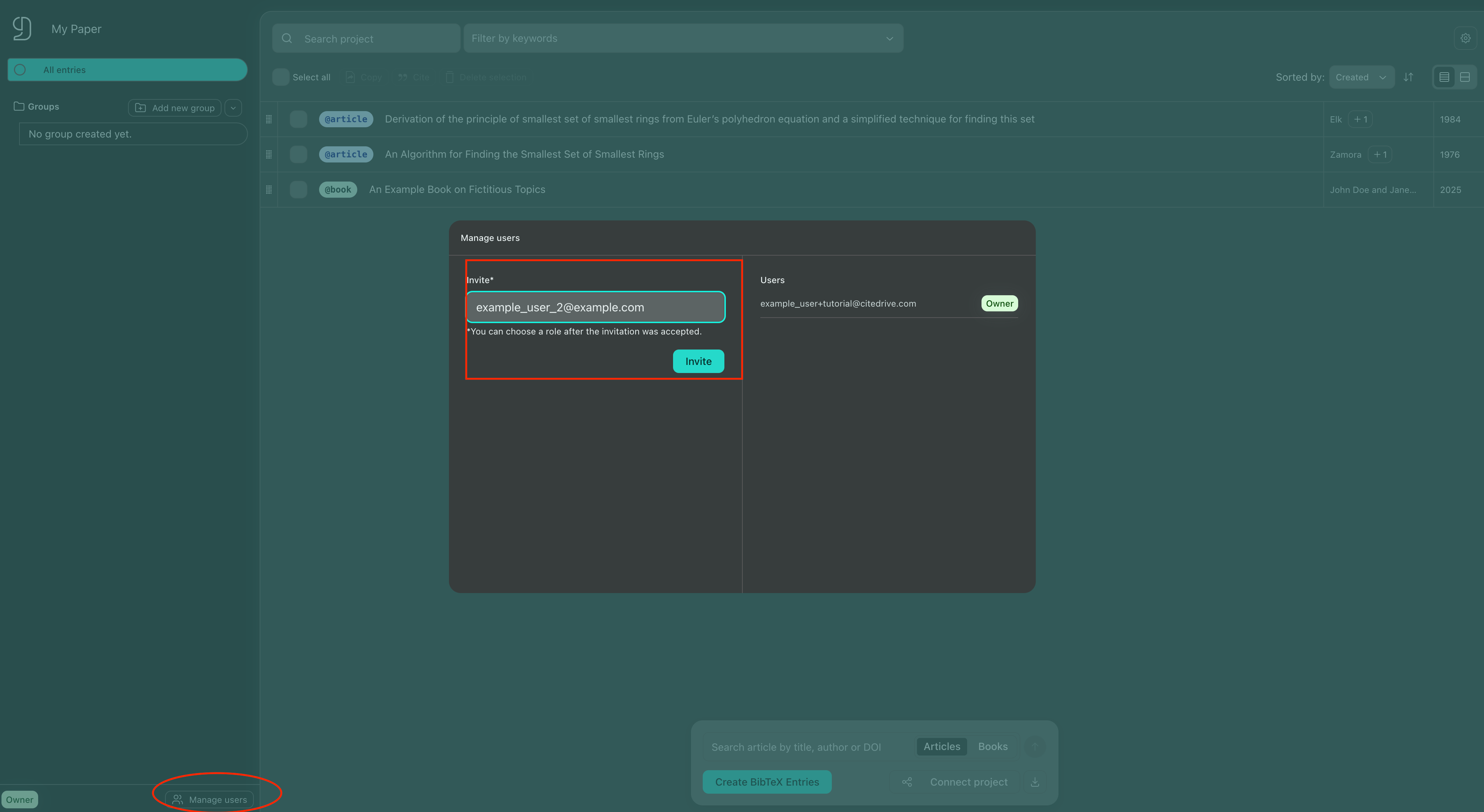
Open the project sidebar on the left.
Click Manage Users at the bottom.
Enter your colleague’s email and set their permission level.
Collaborators can view, add, or edit references depending on the permissions you assign.
Connecting to Your Editor
Overleaf
Click Connect Project and copy the unique URL.
In Overleaf: File > New File > From External URL, paste the URL, name the file (e.g.,
example.bib).Include in LaTeX:
BibTeX:
\bibliography{example}BibLaTeX:
\addbibresource{example.bib}
Cite references: Use
\cite{key}or\autocite{key}. You can select one or more items in CiteDrive and click the Cite button to get the correct format.
RStudio (R Markdown & Quarto)
Copy your CiteDrive project URL.
Paste the URL into the YAML header:
R Markdown:
bibliography: “https://your-citedrive-project-url”Quarto:
bibliography: “https://your-citedrive-project-url”Cite references in your text, which you can also copy from CiteDrive:
R Markdown:
[@key]Quarto:
@key
Knit/Render your document—bibliography entries are downloaded and formatted automatically.
Keeping Everything in Sync
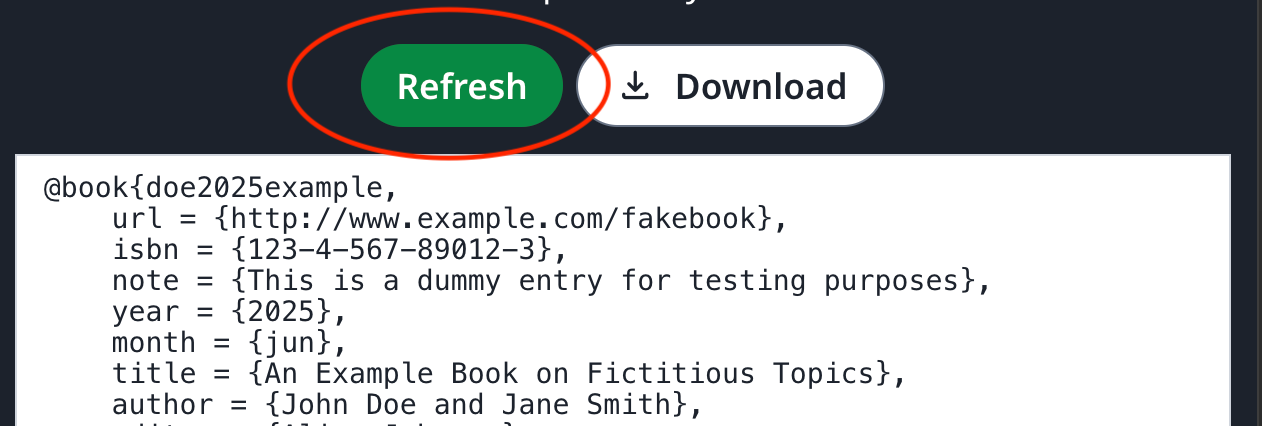
Updates in CiteDrive automatically sync with Overleaf and RStudio. When you—or anyone added to your project—add or edit references, the latest version is always available. In Overleaf, simply click the “refresh” button to update your project with your CiteDrive library. Rendering your R Markdown or Quarto document will always retrieve the latest references from CiteDrive automatically.
Interim Note
This is an “until” guide for CiteDrive 5.0. Full documentation coming soon will include:
More editor integrations (CiteDrive is not limited to Overleaf and RStudio, but those are the most popular).
Advanced organization features
Complete step-by-step workflows
Use this guide to get started and explore the new interface today!